HMdb.org THE HISTORICAL
MARKER DATABASE
            “Bite-Size Bits of Local, National, and Global History”
  Home  — My Markers  — Add A Marker  — Marker Series  — Links & Books  — Forum  — About Us
How to Obtain the Latitude and Longitude of a Marker
 
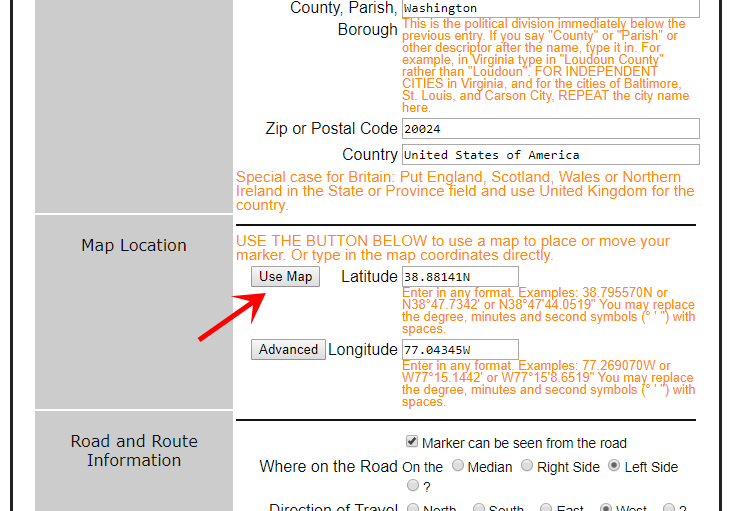
Each marker's Latitude and Longitude coordinates are used to plot its location on a map. Latitude is the number of degrees north or south of the equator. Longitude is the number of degrees east or west of the Prime Meridian. The Prime Meridian is an arbitrary line drawn from the North Pole to the South Pole running through the Royal Greenwich Observatory in Greenwich, England.
 
This database stores latitude and longitude as two decimal numbers. The whole number portion is the degrees and the fractional portion of the number is the fraction of degrees. For example, 38.795570N, 77.269070W. However, you can enter it in any notation, such as N 38° 47' 44.0519", W 77° 15' 8.6519" or 38:47:44, -77:15:08 and the system will convert it. (Oh, and you can omit the ° symbol; you won't find it on your keyboard!)
 
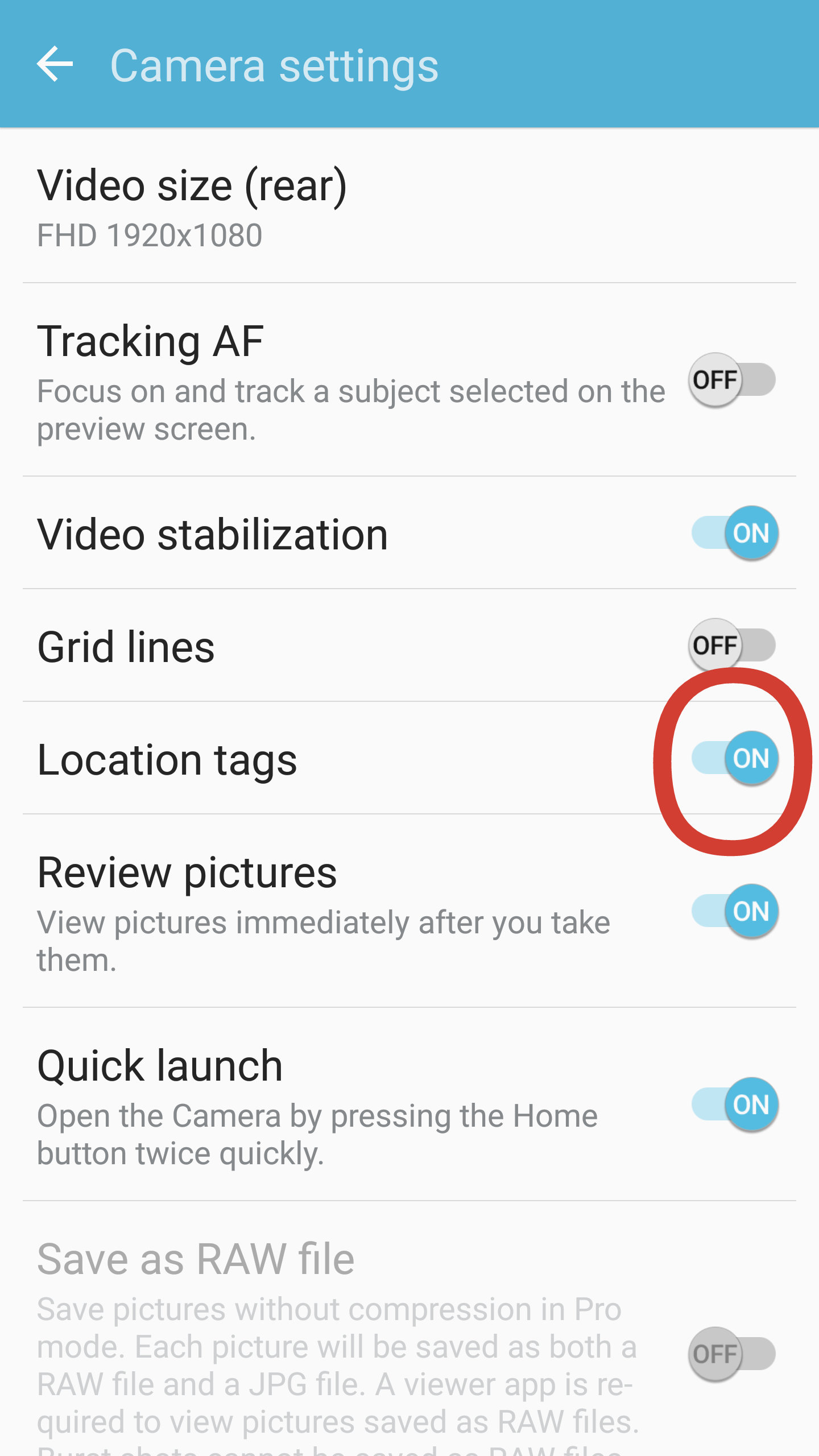
If you have a Global Positioning Satellite (GPS) device, you’re all set. Create a Waypoint when you're there and later recall it and just type in what you see on the screen. Also, some cellphones may be able to display latitude and longitude (see note below). But if you are like most of us, you’ll have to use a map. Here's how.
 
 
Garmin eTrex Legend GPS Unit
This hand-held unit uses the Global Positioning System of satellites to show you your current position and where you've been on a map on its screen, as well as how to get where you're going. One click saves the latitude and longitude of the historical marker you're at so you can recall it later at home and enter into this database. More info at Amazon.com.
 
 
Sony GPS-CS1
Sony GPS-CS1 Auto Log
3 oz., 3" long. No buttons to push! Drop it on the ground next to the marker, step back and take your photos, then don't forget to pick it up. Back home plug it in to your computer and its software will embed the latitude and longitude into each photo. It figures it out by matching timestamps. Works with any camera that outputs JPEG photo files (even though it will complain when you use it on images taken by a non-Sony camera). More info at Amazon.com.
 
A. If you have a copy of Microsoft’s Streets and Trips map software, take the following steps to obtain the latitude and longitude.
    1. Turn on the Location Sensor (click on "Tools", then on "Location Sensor").
     
    2. Zoom in as close as possible and put your mouse pointer on the map where the marker is located.
     
    3. Using paper and pencil, write down the latitude and longitude shown.
     
    4. Return to the Add-A-Marker page and enter the numbers.
 
On later versions of Streets and Trips this method may be easier:
    1. Plant a pushpin on the map where the marker is located.
     
    2. Click the pushpin to select and then right click it and choose option to "Show in Live Search Maps".
     
    3. Browser launches with Microsoft Live Maps centered on your location and the Latitude and longitude are embedded in the URL on the address bar of the browser.
     
    4. Copy and paste them into the Add-A-Marker page fields.
 
B. You can easily trick Google Maps into showing you the latitude and longitude of its "Get Directions" pushpins. Here’s how.
    1. Go to maps.google.com.
     
    2. Important: Click on “Get Directions” to switch to Get Directions mode.
     
    3. Type in the street or road, town, and state or province into the “Start address” box. (It is important to leave the “End address” box empty.) Then click the “Get Directions” button.
     
    4. A green pushpin will appear on the map. Use your mouse to move it to the approximate location of the marker.
     
    5. Zoom in and move the pushpin to the correct side of the road, or wherever the marker may be. In some areas, you may be able to zoom in further and see the marker itself if you switch to Satellite mode. If you see it, move the pushpin right on top of it.
     
    6. After you move the pushpin, the latitude and longitude will show up in the “Start address” box, after the text you typed in. You might have to click in the box and use your arrow keys to scroll to the right to see them.
     
    7. You can copy and paste them into the Add-A-Marker page fields. Be sure to pick up the decimal and the fraction for each number.
     
    8. If there is a negative sign in front of a number, be sure to enter it. Negative latitudes are S, positive latitudes are N; negative longitudes are W, positive latitudes are E.
Cell phone note: Most cell phones in use today know the latitude and longitude of their current location. They need this information in case you dial 911 to report an emergency. This information is sent to the cell phone tower and can be relayed by the cell phone company to many emergency response centers. Unfortunately, most cell phones keep this information to themselves and provide no way for the user to display it on their screen.
 
So check your cell phone manual to see if you got lucky. Some folks have figured out how to get particular cellphone models to give up their latitude and longitude. You can google around to find this information, but its not easy.


•••
More Search Options
 
Categories

 
States & Provinces

 
Counties
Click to List


Countries

Page composed
in 0 ms.


history_125x125
The History Channel Shop